
written by Bill Bennett
Passwords are one way schools can keep unwelcome visitors away from online accounts. Multi-factor authentication, or MFA, gives a higher level of protection.
It’s a good way to be certain the right person gets access to an account.
When we talk about multi-factor authentication, we mean using more than one piece of information to access an account. The most common version of MFA is two-factor authentication or 2FA. Using two factors can improve how well data is protected.
A password can be the first factor. This is something you know. A second factor could be something you have, a code, a phone with an authenticator app or a txt message sent to a known number. Or it might be something you are, like a fingerprint or facial recognition. These all work because it’s unlikely a hacker who has your password has access to a second form of authentication.
Why do schools need MFA?
Schools need to protect their student’s data: health records, home addresses and lesson plans, all of these are lucrative targets for hackers. Usually they have fewer IT resources to call on and may have to manage shared devices. The Ministry of Education says MFA adds an extra layer of security.
Criminals have found ways to get around passwords. There’s a thriving underground market where hackers buy and sell stolen passwords. One of yours may already be on that list.
Otherwise they can make educated guesses. Or they can use what we call ’brute force” attacks. These try every conceivable combination of letters and numbers until they hit gold. They have also become skilled at tricking people into giving away their passwords through phishing attacks and a technique known as social engineering. This technique can also be used to ask for other security codes.
If we’re honest we know human nature often wins out over cybersecurity best practices. Many of us recycle familiar passwords across multiple sites. Because traditional passwords rely on our flawed memories and human failing, they remain a weak link in digital security — making that extra layer of verification essential.
We need something stronger. 2FA authentication is the most common option. You’ll see 2FA when you use popular online sites and services. Google’s G Suite for Education uses it. You’ll see it when you use Gmail, Apple or Microsoft cloud services.
Different approaches
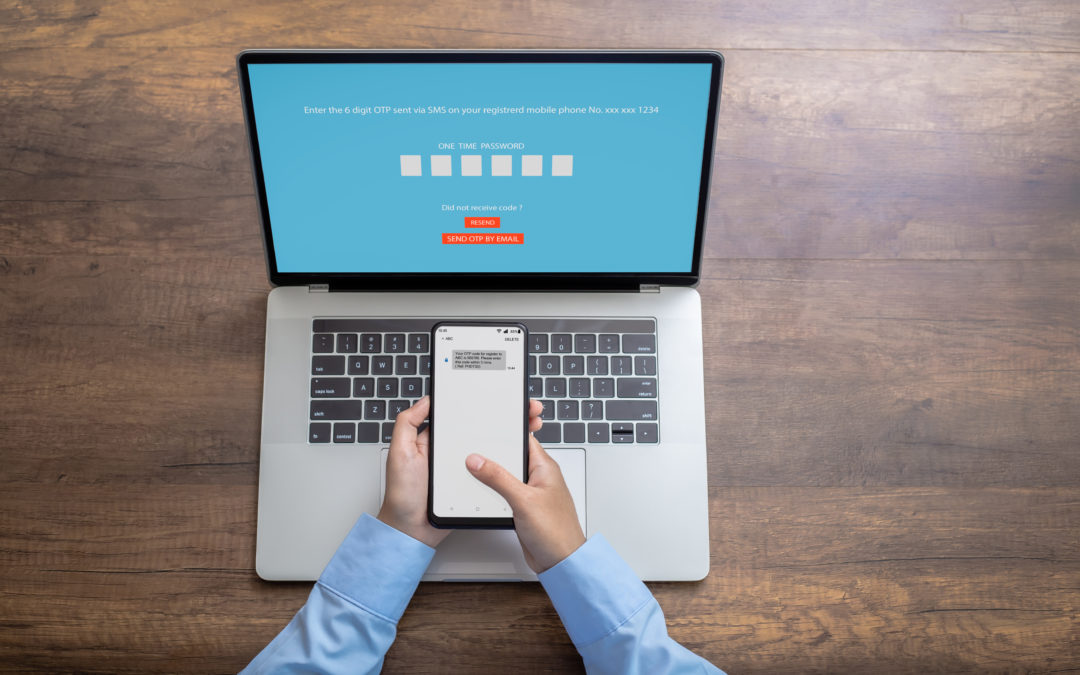
There are a handful of approaches to 2FA. The simplest uses SMS text messages.
When you visit a site or log-on to a service using 2FA, you enter your password as normal. Then, the site sends a short code as a text message to your mobile phone. You have to enter this as well as the password to get access.
It’s straightforward and painless. You don’t need to download an app to do this. Although it does mean you need to have your phone with you and a network connection. That may not always be the case in more remote parts of New Zealand.
Entering the code is even easier if you use certain brands of laptop and phone set up on the same network. Incoming codes go direct to the webpage. Otherwise you have to enter the code yourself.
Another layer of protection is that the codes last for a short time, so you need to be quick.
SMS message 2FA isn’t foolproof. Determined hackers have got around it, but it requires far more effort, the kind of effort they will only make when there is a lot at stake. Hackers will find easier pickings elsewhere. They prefer to look for low-hanging fruit.
Authenticator apps
The second MFA option involves an authenticator app. Google and Microsoft offer apps but there are others that follow the same standard. They are quick and simple to use. They’ll keep you safer and fill in the gaps not covered by text message codes.
As with SMS codes, you will need a mobile phone although the two apps mentioned can work on tablets as well. You don’t need a network connection. This means there is no possibility of criminals intercepting your messages.
Authenticator apps typically give you a code that lasts for about 30 seconds or ask you to tap a short term alert. If you miss one, another one appears immediately. You will have to type it in.
Other approaches
There are other MFA approaches you may come across. With a biometric login the computer needs to recognise you either with a fingerprint reader or by face recognition. You might use this to get access to a computer or phone.
Fingerprint readers are common on phones and you’ll find them on some laptops. Most modern phones and many laptops have built-in face recognition.
There are also physical security keys that offer a higher level of protection because a hacker would need to steal the key to gain access. They are phishing-proof because there is no code to hand over.
MFA is not bulletproof but it adds an extra layer of security without much effort. It helps to protect your digital identity and privacy. N4L recommends you always use strong passphrases and robust security settings across all your devices, including anti-virus security and firewalls.
*Bill Bennett is an experienced editor and journalist specialising in technology and business. He has worked for New Zealand and international newspapers including the NZ Herald and The Australian Financial Review. He is also a regular technology commentator on RNZ Nine-to-Noon.
Learn more about setting up MFA on your Apple or Android devices.
These easy to follow steps will also help you add these as Trusted devices for logins on certain systems, which can be useful if you use them often.
When you make your computer or phone a trusted device – where applicable, you get the added convenience of skipping the second verification step saving you time, but your account is still protected by the two-factor authentication.
If you’re not sure about something, get in touch with your IT contact or our friendly Customer Support team is here to help on 0800 LEARNING.