
Last updated on May 6, 2026 at 03:57 pm
N4L has made a change to the GlobalProtect settings, which will affect users using the GlobalProtect VPN client to log in remotely.
Previously, GlobalProtect was configured with an “always on” setting, which meant it automatically reconnected to the school firewall when a user logged into the laptop. However, we’ve identified that “always on” has been causing issues when users are actually onsite at school using the school network.
To prevent these issues, N4L has turned off the “always on” setting.
This means users who want to use GlobalProtect VPN to securely login to the school network remotely will now need to manually connect by opening the GlobalProtect client and clicking “Connect”.
For Microsoft users:
In the bottom right corner of the status tray, click on the “globe” icon and select “Connect”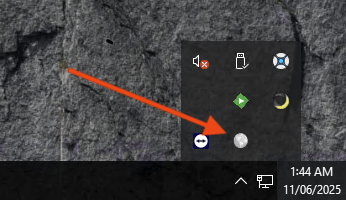
For Apple Mac users:
Click on the “globe” icon in the top right corner, then select “Connect”
If you have any questions, our friendly Customer Support team is here to help. Contact us on [email protected] or 0800 532 764.